
1

Hello,

First thank you for this great software!

I'm having a bit of trouble when studying my videos. The videos are typically 1.5 hours long of tennis (of which it's probably 20 minutes of play and the rest is time in between points and games) and my ideal use case would be to tap a button to fast forward through perhaps 3 or 5 seconds per tap to eliminate time in between points and then frequently do a few taps to rewind backwards to replay a shot or rally.

The existing navigation methods of moving the slider or the 1% skip/forward backward end up being more like 1 minute in either direction. The frame by frame method with the left/ right arrow ends up being 100's of taps so I'm just looking for something in between frame by frame and the 1% skip.

Thank you for considering my feature request. Also if I've overlooked a feature (or perhaps the ability to make a custom shortcut key for this) please let me know.

Thank you very much!
Scott

ps. I know one work around would be just to watch these videos on a different player that has a 5 second skip feature. However, the reason I'm watching these videos on Kinovea and not a generic video player is that I do frequently use the great features of Kinovea to sync two videos for comparison, overlay them, go frame by frame / ultra slow-mo etc.

2

Yeah I often want to skip 5 or 10 seconds as well. And it seems easier to reason about than "1%" which changes meaning for every video, or maybe it's the muscle memory from using arrow keys on Youtube.

Probably we should replace these commands with "short skip" and "long skip" and let the user choose both the value and the unit (percentage or seconds). It could default to something like 5 seconds for short skip and 10% for long skip.

3

I too would absolutely love a different method to rewind 3-5 seconds for film review. Can this feature be addded to the PlayerScreen command options ??

Thank you !!

4

Yes, I just added this a few days ago.

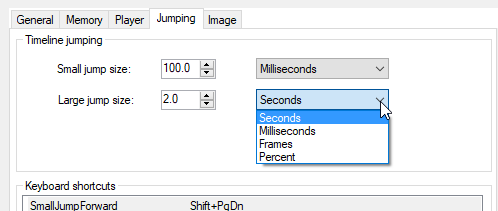
It will be configured in the preferences, something like this:

https://www.kinovea.org/screencaps/2026.1/2026.1-jump-sizes.png

You set the size of the jump and the "unit" of the jump independently. This is just how I have it configured right now, but the default will probably be something like 0.5 seconds for small jump and 10% of the video for large jump.

For "Percent" unit it is snapping to the next/previous step. For seconds and milliseconds, it takes into account capture frame rate if you have configured it.

There is a little "toast" message showing the size of the jump on the side of the screen, and if you hit the shortcut repeatedly it accumulates the value. So you can quickly jump +2, +4, +6, +8 seconds for example and get feedback about what you are doing.